How to create a scheduled Teams meetings
Body
How to Create a Scheduled Teams Meeting
Create a Scheduled Meeting Through Outlook Calendar
-
Log in to your Outlook email
-
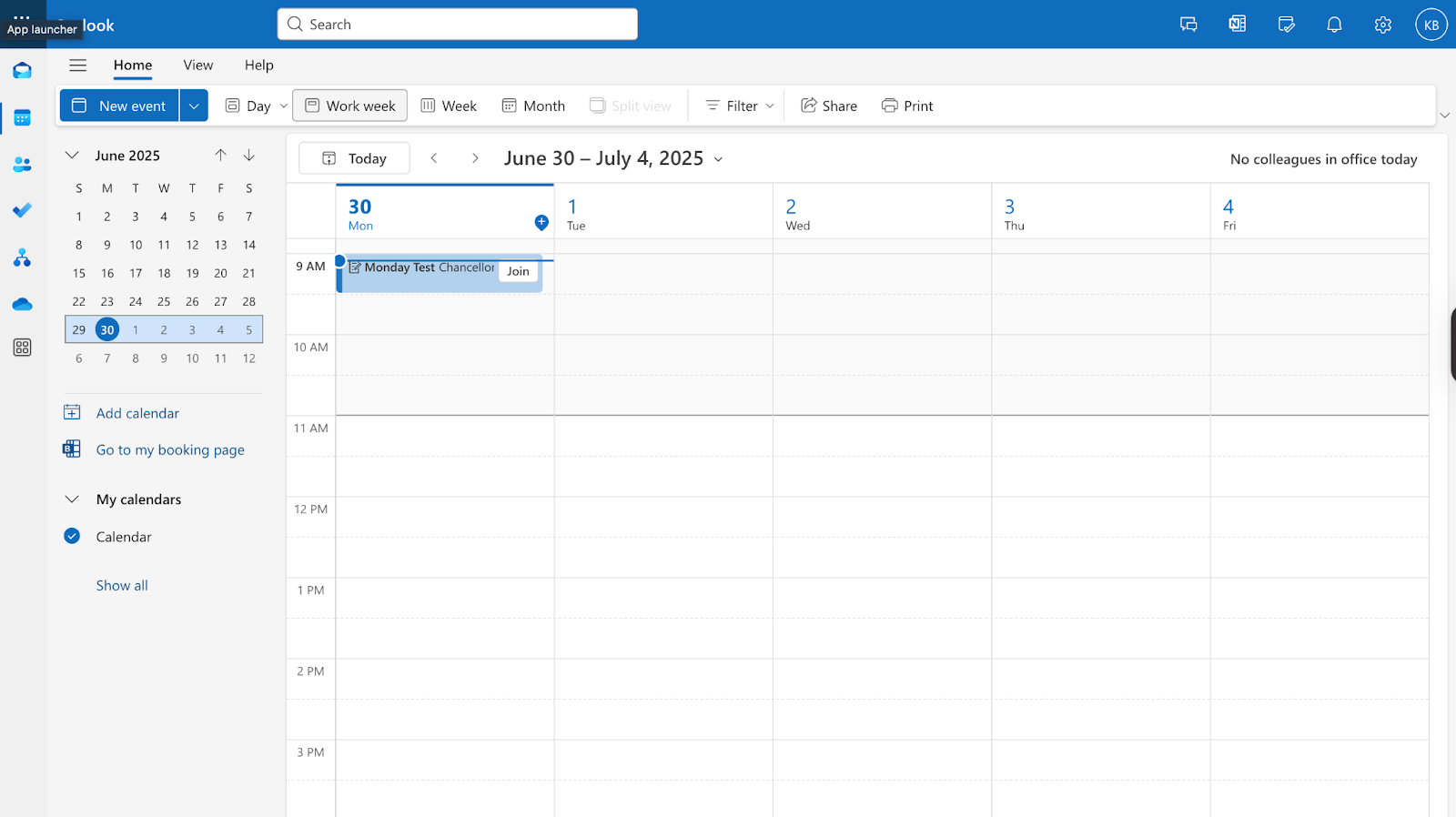
On the left side panel, select the calendar icon
-
Select the blue New Event icon at the top
-
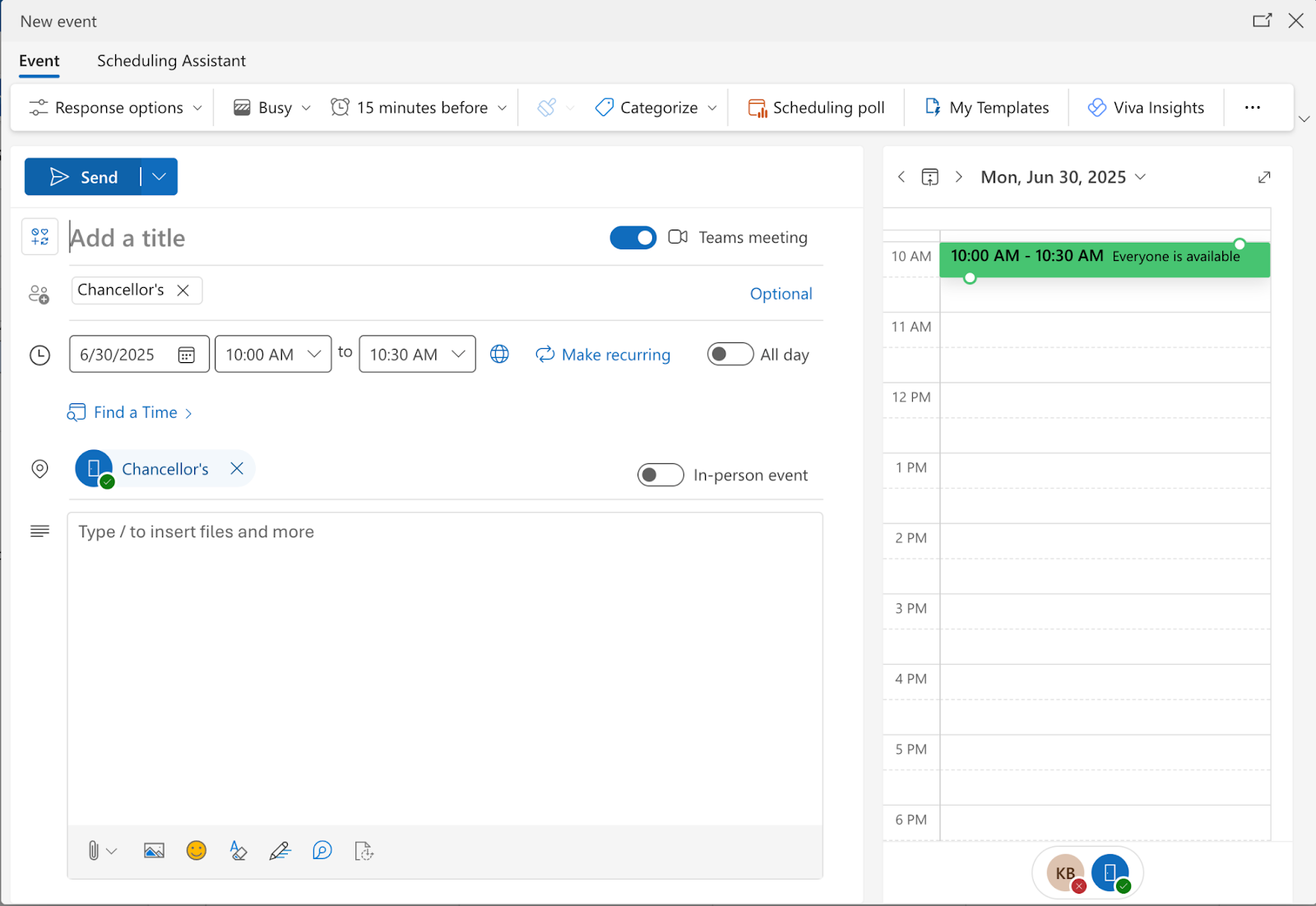
Add in a title of the meeting, adjust the date/time and add a description if needed
-
Next to the title be sure to enable Teams Meeting
-
Under Invite Attendees make sure to add Chancellor’s as a participant (Chancellors is the room where you will start and control the meeting)
-
Click Send
-
You have created a scheduled Teams meeting in Outlook Calendar
Create a scheduled Meeting Through Teams
-
Log in to your Office account from this link teams.microsoft.com
-
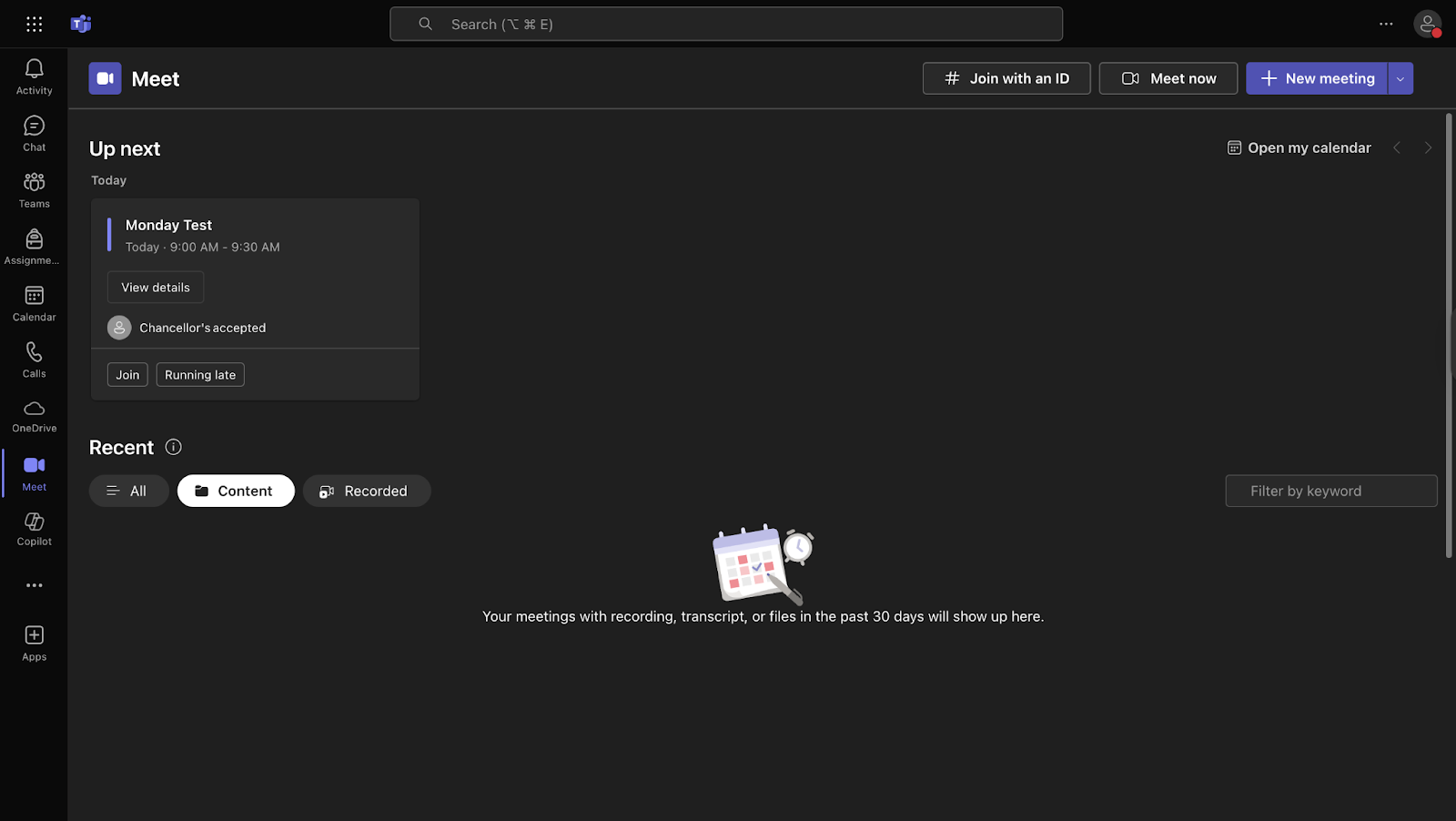
On the side panel, select either Calendar or Meet
-
At the top right, select the purple + New Meeting icon
-
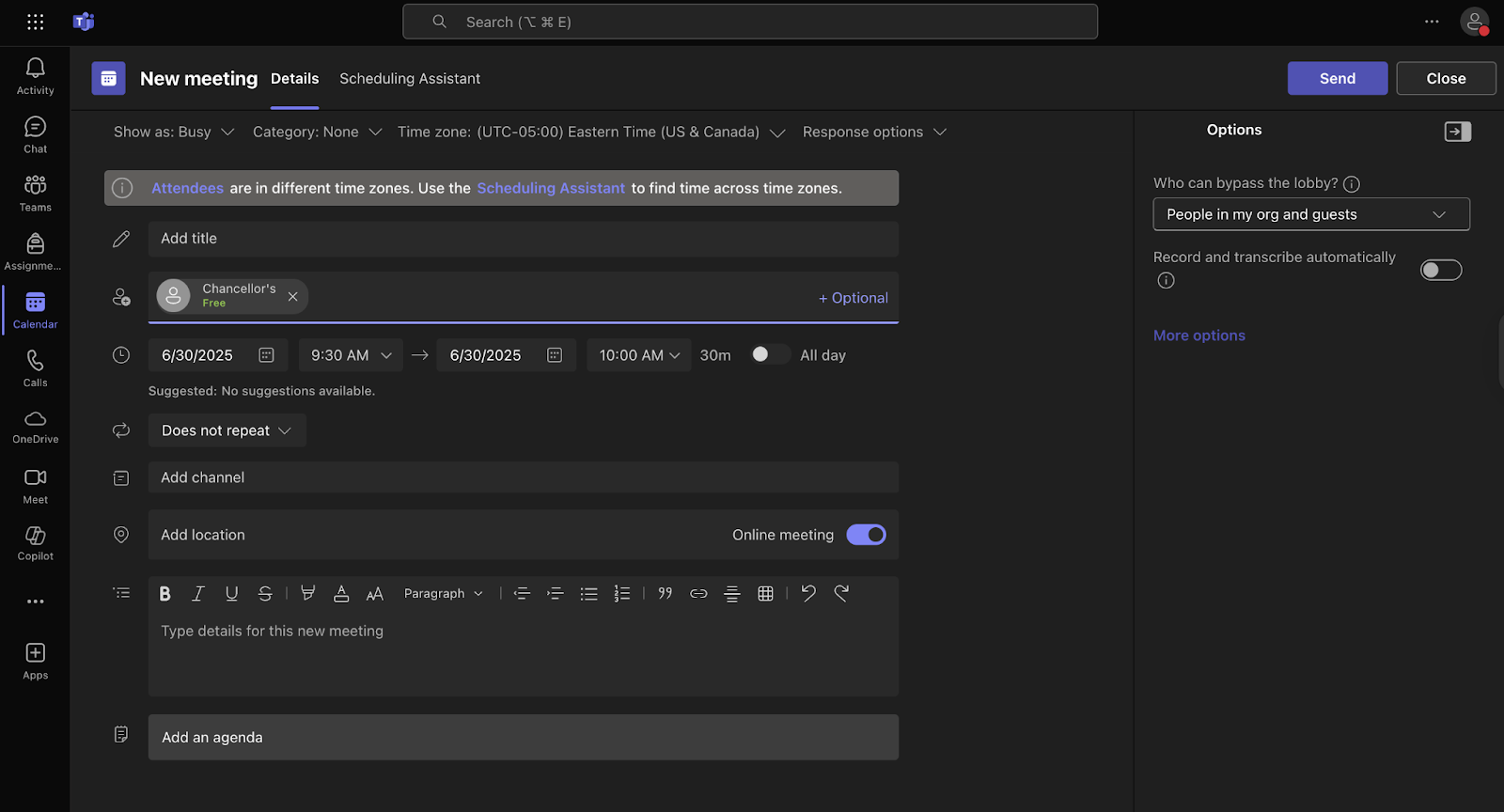
Enter a title and make sure to add Chancellor’s as and attendee
-
Make sure Online meeting is checked on
-
Click Send
Details
Details
Article ID:
169255
Created
Mon 12/15/25 2:48 PM
Modified
Mon 12/15/25 2:48 PM